


Split Fiction has a pretty intuitive set of controls, and it varies slightly based on whether you’re using a keyboard or controller.
Being a co-op title, I believe that controllers are the best way to play this game. That said, this guide will include the full set of controls for both PC users (assuming you don’t use a controller) and console users.
Full Split Fiction controls
The following table lists the controls for keyboards and both types of controllers (Xbox and PlayStation).
| Action | Xbox | PlayStation | Keyboard |
|---|---|---|---|
| Move Forward | LS up | LS up | W |
| Move Backward | LS down | LS down | S |
| Move Left | LS left | LS left | A |
| Move right | LS right | LS right | D |
| Jump | A | X | Spacebar |
| Cancel | B | Circle | Q |
| Dash | X | Square | Left Shift |
| Interact | Y | Triangle | E |
| Primary Ability | RT | R2 | LMB |
| Secondary Ability | LT | L2 | RMB |
| Grapple | RB | R1 | F |
| Sprint | LS | L3 | V |
| Find Other Player | D-pad up | D-pad up | Middle Mouse Button |
| Center View | RS | R3 | G |
| Move Upward | A | X | Spacebar |
| Move Downward | B | Circle | Left Ctrl |
Can you change default controls in Split Fiction?
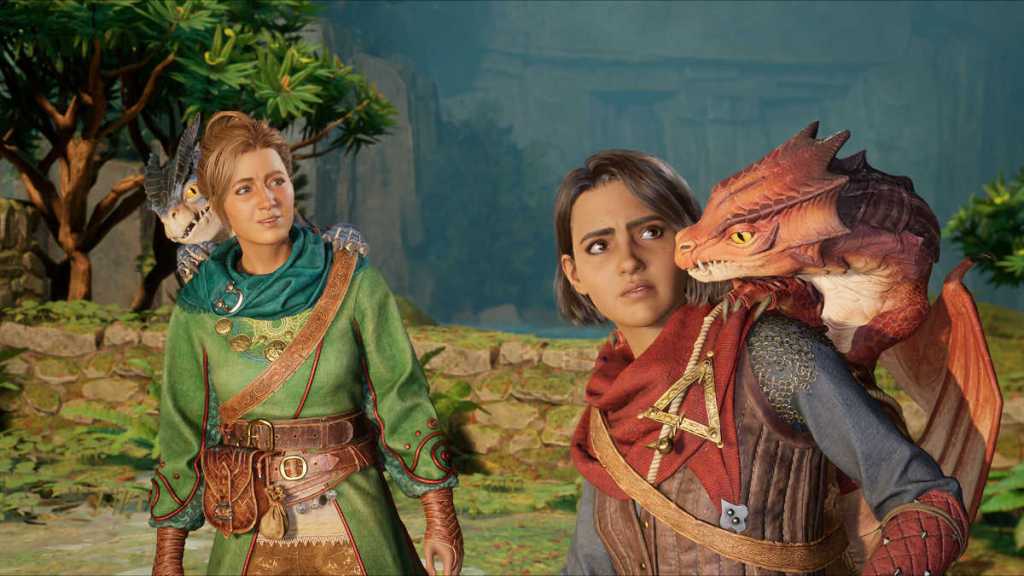
Whether you’re using a keyboard or controller, Split Fiction allows you to fully rebind the controls. This privilege is available for both Mio and Zoe and can be done from the in-game settings. The set of options is slightly more limited in the case of a controller, but it’s the better medium to use for sure.
On PC, you can use either an Xbox or a PlayStation controller for the best results. You won’t have to depend on Steam Input, and you should find supportive prompts for either type of controller. Just plug in the controller you’re trying to use, and run the game. You can also use a third-party controller as long as it’s supported for PC.


Published: Mar 9, 2025 03:47 pm